
Manage your savings account in our Mobile Banking App
Step-by-step help on using our Mobile Banking App to manage your savings account.
Check your savings account balance, interest rate, and transactions
- After you log in to our Mobile App, your account details and balance will be displayed on the home screen
- To view an account summary for your savings account, select the information icon next to your account name
- Your account summary shows your balance, available balance, interest rate and, if applicable, your bonus rate end date and what your interest rate will be after your bonus period ends
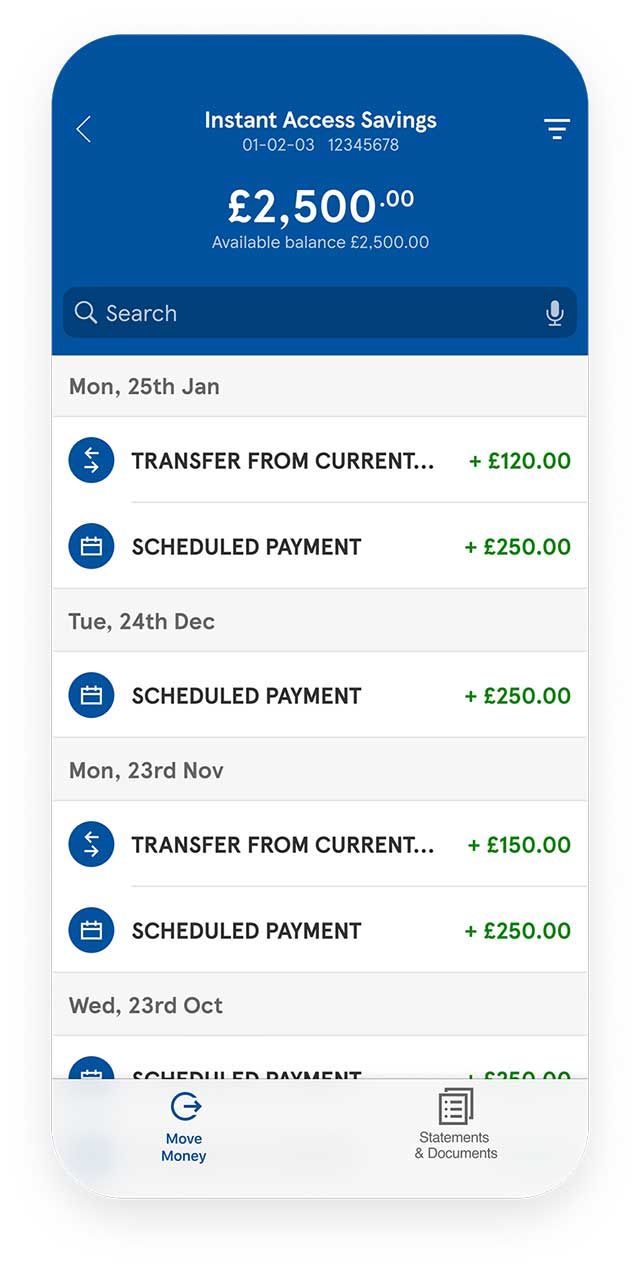
- To check your transactions, select your savings account
- You can view all transactions since you opened your account
Access your savings account statements and documents
You can access your statements and documents securely through our Mobile App:
- Select your savings account from the home screen
- Use the menu at the bottom of the screen to select 'Statements and Documents'
- Choose the document you want to view
- You can view your statements over the last 18 months
You can also save and print your statements and documents using the share button.
Your document has personal and financial details that could be misused if shared incorrectly. If you email, export, or print it, please keep it secure.
Pay into your savings account
There are 2 ways to pay into your savings account using our Mobile App. From the home screen, select ‘Make a deposit’ then choose a payment option:
Pay by Bank
- Select ‘Pay by Bank’ as the payment option
- Select an amount to pay and the bank you want to pay from
- Your bank will then take you through their login process and ask you to authenticate the payment
Transfer from another account
- Select ‘Account details’
- Copy your account details to move money from another banking app
Our savings accounts have different deposit limits. Please check the terms and conditions for your savings account before making a deposit.
Withdraw money from your savings account
If you have an Internet Saver or an Instant Access Savings Account, you can withdraw money to another account in your name using our Mobile App:
- Set up a linked account
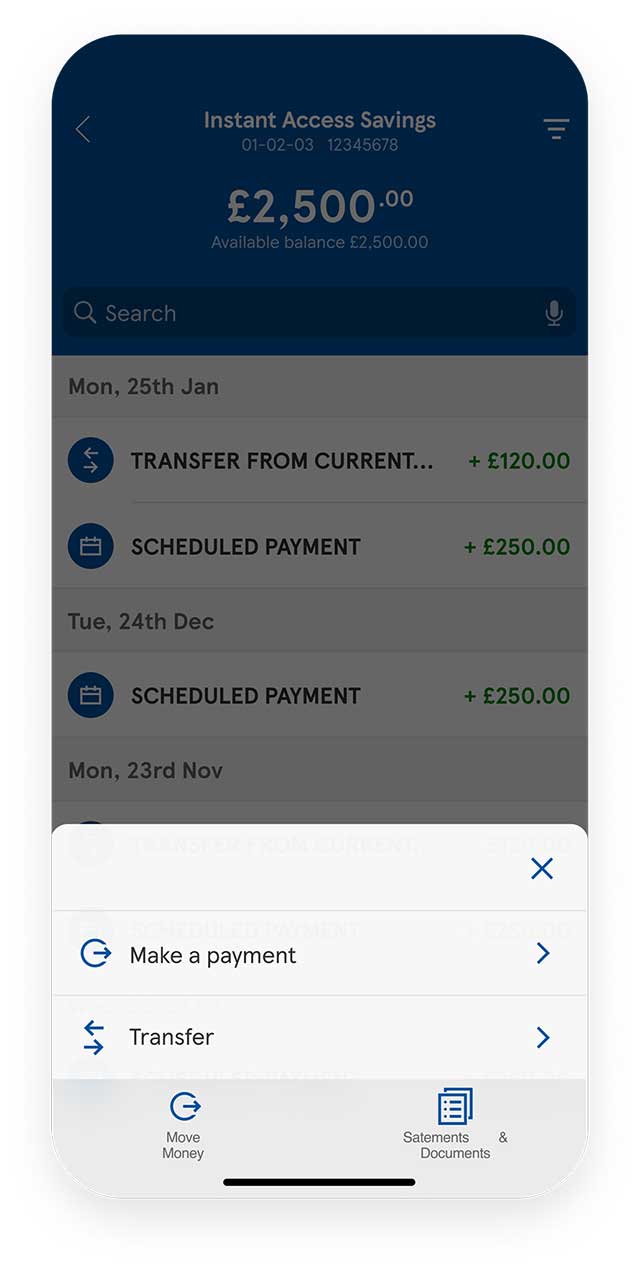
- Select your savings account from the home screen
- For iOS, select 'Move money' or, for Android, select the menu button at the bottom of the screen
- Select 'Make a payment'
- Choose the account you’d like to send money to
- Enter the amount and add a reference
- Select ‘Continue’
- Choose whether to send now or schedule a date
- Select either the ‘Make a payment’ or ‘Schedule payment’ button to complete the withdrawal
For information on withdrawing money from an Instant Access Cash ISA, please see our FAQ How do I move money out to another account from my Instant Access Cash ISA?
Link your other Tesco Bank accounts
Do you have more than one Tesco Bank account but cannot see all your accounts in our Mobile App? Follow these steps to manage multiple accounts on the move:
- From the home screen, select the settings menu at the top of the screen
- Under ‘Account’, select ‘Add Tesco Bank accounts’ then ‘Continue to Online Banking’
- Log in to Online Banking
- At the bottom of your Online Banking Overview, select ‘Add your other Tesco Bank accounts’
- Select the product you wish to add and enter your account details
If, after following these steps, you still cannot see your other account(s), please contact us.
Using our app: step by step guides



Encountered a problem?
Get detailed answers to your questions on our support page and in our FAQs.