
Manage your credit card with Online Banking
Step-by-step help on using Online Banking to manage your credit card.
Check your credit card balance and transactions
- After logging in, you’ll see your Online Banking Overview
- This gives a summary of your credit card, displays your current balance and your available credit
- Up to 3 months' worth of your recent transactions will appear in tiles to the right of your product
- Select a tile to show more detail about the transaction
Access your credit card statements
You can access your statements securely through Online Banking:
- Select your credit card from the home screen
- Select ‘Statements’
- Choose the document you want to view
You’ll be able to view up to 5 years’ worth of statements. You can also save and print your statements.
Your document has personal and financial details that could be misused if shared incorrectly. If you email, export, or print it, please keep it secure.
Pay your credit card
There are 3 ways to pay your credit card using Online Banking.
Select your credit card from your Online Banking overview, then choose a payment option:
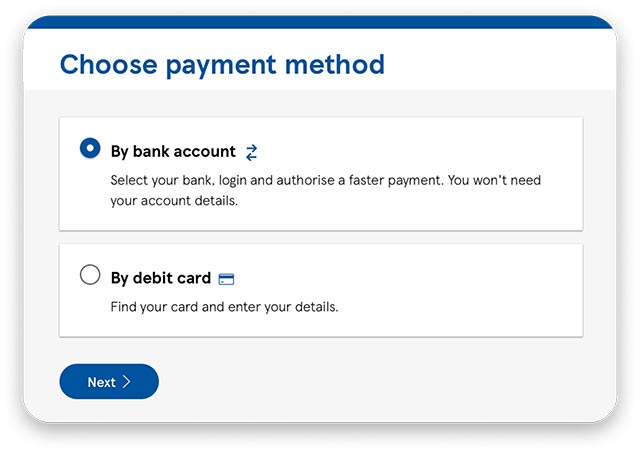
Pay by Bank
- Select ‘Make a payment’ then ‘Pay by Bank’ as the payment option
- Choose an amount to pay and the bank you want to pay from
- Your bank will take you through their log in process and ask you to authenticate the payment
Pay by Debit Card
- Select ‘Make a payment’ and then ‘Pay by Debit Card’ as the payment option
- Choose an amount to pay and a debit card to pay from
To add a new card, select ‘Pay with a new card’, enter your card information and choose whether to save it for next time.
Pay by Direct Debit
To set up a Direct Debit:
- Select ‘More’, then ‘Direct Debit’ from the drop-down list
- Enter the sort code and account number of the account to pay from and choose an amount to pay
- Select ‘Continue’ then ‘Confirm’
Edit an existing Direct Debit:
- Choose ‘Edit Direct Debit’
- Edit the sort code and account number of the account to pay from
Manage your credit card
To manage your credit card from your Online Banking overview, select ‘Your Card’ from the drop-down list, then choose an option:
Block your credit card:
- Choose ‘Temporary Block’ to block your card; you can unblock it later if you find it. While your card is blocked, your account will still be active, but all transactions and additional cardholders will be on hold
Report a lost or stolen credit card:
- Choose ‘Report lost or stolen’ to cancel your card
- We’ll get a new card sent out to you
Replace a damaged credit card:
- Choose ‘Order a replacement’
- We’ll get a new card sent out to you
Get a PIN reminder:
- Choose ‘Get a PIN reminder’ and we’ll send you a reminder by post within 7 days
Set up notifications for your credit card
To set up notifications:
- Select your credit card from your Online Banking overview
- Select ‘More’, then select ‘Manage Alerts’ from the drop-down list
- Choose the notifications you would like to receive by email, SMS or both
You can turn on notifications for:
- Balance alerts - get a notification when your account balance goes above, goes below or matches the amount you’ve chosen
- Credit limit alerts - receive a notification when you’re about to reach, or have gone over, your credit limit
- Payment due alerts - get a notification before your payment is due; you can choose how many days in advance you’d like to receive it
- Statement alerts - receive a notification when your new monthly statement is ready to view
Make a balance transfer
Things to consider before making a balance transfer:
- You can transfer up to 95% of your credit limit
- You cannot transfer a balance between 2 Tesco Bank credit cards
- Your available credit will not reflect any interest that is due to be applied to your account or your balance transfer fee, so please ensure that there are sufficient funds left to cover your interest charge (unless you are on a 0% promotional interest rate) and your balance transfer fee
- Your balance transfer fee can take up to 2 working days to be applied to your account
- Please continue to make payments to your other card while the balance transfer is being processed
- More information on balance transfer fees can be found on our charges, fees and interest page
To make a balance transfer:
- Select your credit card from your Online Banking overview
- Select ‘Balance transfer’
- Read the overview, then select ‘Apply’
- Enter the balance transfer amount (the minimum and maximum amount you can transfer will be displayed as well as the transfer fee) then select ‘Next’
- Enter the credit card number of the credit card you want to transfer the balance from, read the important information and select ‘Next’
- Check the balance transfer details, tick the box confirming you want to continue with the transfer and select ‘Request transfer’
- Enter your Tesco Bank password, then select ‘Next’ to complete the transfer
Make a money transfer
Things to consider before making a money transfer:
- You can borrow up to 95% of your available credit limit
- Money arrives in your bank account within 1 to 2 working days
- Your available credit will not reflect any interest that is due to be applied to your account or your money transfer fee, so please ensure that there are sufficient funds left to cover your interest charge (unless you are on a 0% promotional interest rate) and your money transfer fee
- Your money transfer fee can take up to 2 working days to be applied to your account
- More information on money transfer fees can be found on our charges, fees and interest page
To make a money transfer:
- Select your credit card from your Online Banking overview
- Select ‘Money transfer’
- Read the overview, then select ‘Apply’
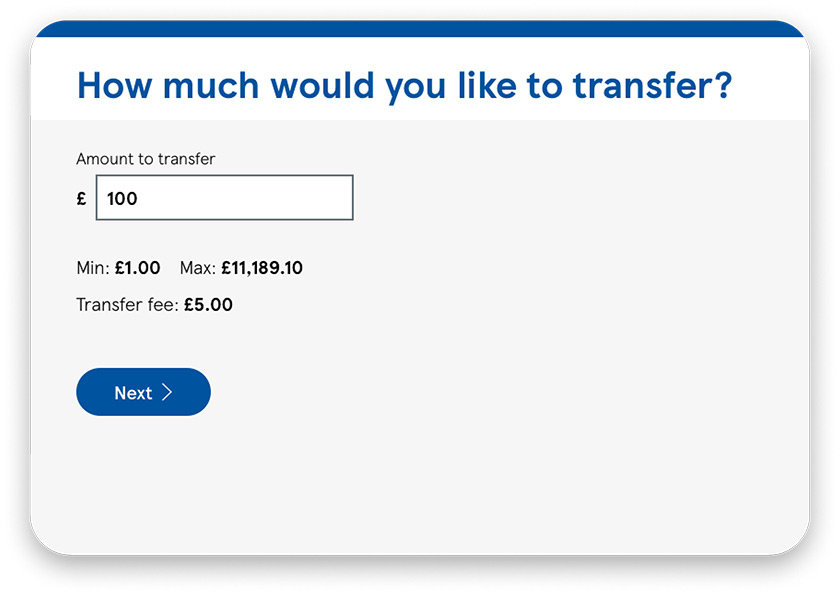
- Enter the money transfer amount (the minimum and maximum amount you can transfer will be displayed as well as the transfer fee) then select ‘Next’
- Enter the name, sort code, account number and a reference for the account you want to transfer the money to, read the important information and select ‘Check payee details’
- Check the money transfer details, tick the box confirming you want to continue with the transfer and select ‘Request transfer’
- Enter your Tesco Bank password then select ‘Next’ to complete the transfer
Link your other Tesco Bank accounts
Do you have more than one Tesco Bank account but cannot see all your accounts in Online Banking? Follow these steps to manage multiple accounts:
- Log in to Online Banking
- At the bottom of your Online Banking overview, select 'Add your other Tesco Bank accounts'
- Select the product you wish to add and enter your account details
If, after following these steps, you still cannot see your other account(s), please contact us.
Using Online Banking: step by step guides



Encountered a problem?
Get detailed answers to your questions on our support page and in our FAQs.