
Mobile Banking App troubleshooting
If you’ve encountered a problem while using our Mobile App, find the answers here.
Registration support
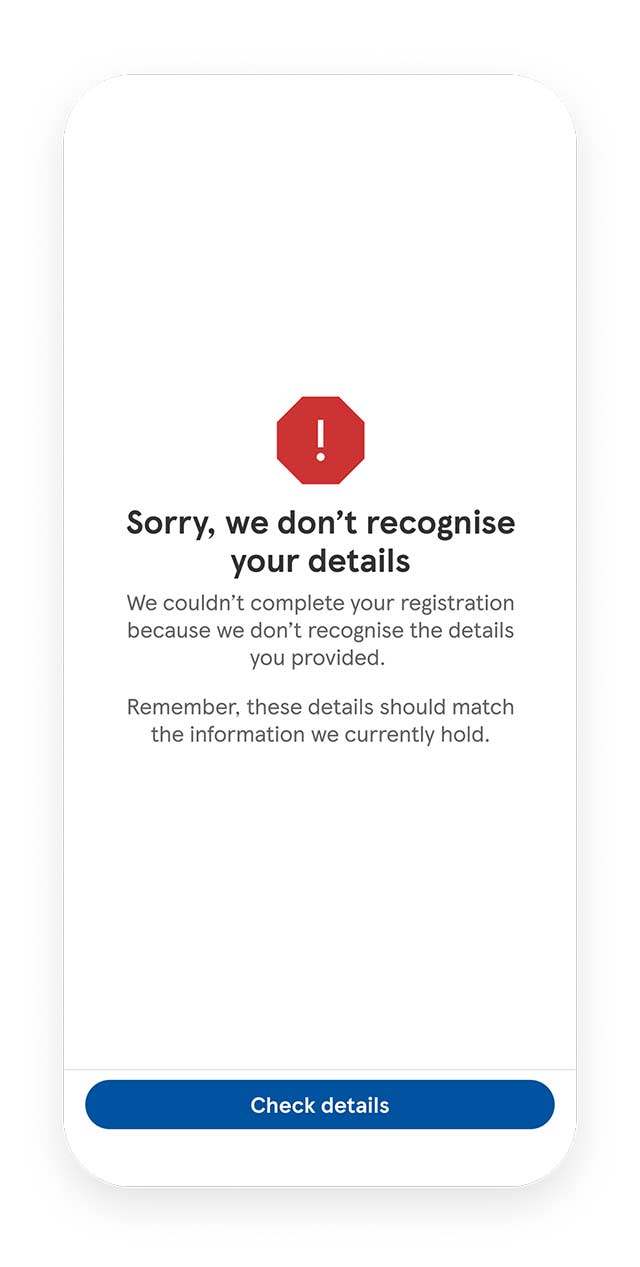
Account details not recognised
During registration, if you’ve not already created credentials, we’ll ask you for your account details to get you set up. If we do not recognise your details, then please check them and try again. If they continue to be unrecognised, it may be because your account is still being set up, so you might need to wait until the next day to register.
If the problem continues, please contact us.
Username or password not recognised
If you're newly registered for Online Banking and your Online Banking username or password is not recognised when registering for our Mobile App, your account may still be getting set up. You may need to wait until the next day to register.
If you’re still experiencing problems, you can reset your username or password using Online Banking on a recognised device. If you no longer have access to a recognised device, please contact us.
Locked details
If any of your details are locked during registration, you’ll need to reset them. You can do this via Online Banking on a recognised device. If you no longer have access to a recognised device, please contact us.
Login support
Unrecognised details
If one or more of your login details are not recognised, please double-check you’re using the correct details. Make sure your device is not auto-filling old ones.
Forgotten or locked password
- Follow the ‘Forgotten your password?’ link below the password field
- We’ll ask for 2 digits from your security number
- We’ll send you a one-time access code to your phone
- Choose your new password with at least 7 characters using a mix of letters and numbers that’s different from your username
- If needed, choose a new 5-digit passcode
If your password or passcode still does not work, please contact us.
Forgotten or locked security number
- You’ll need to reset your security number using Online Banking on a recognised device
- Enter your username and select ‘Log in’
- Select ‘Forgotten your Security Number or Password?’ then ‘I’ve forgotten my Security Number’
- If we do not recognise your device, switch to a recognised device you’ve used before
- If you no longer have access to a recognised device, please contact us to request a temporary security number
Biometric login not working
If Face ID, Touch ID or Fingerprint log in is not working, check that:
- Your preferred login method is turned on in your device’s settings
- Your face or fingerprints are saved correctly
Once you’ve checked these settings and made any changes, open our Mobile App’s Settings menu and enable Face ID, Touch ID or Fingerprint
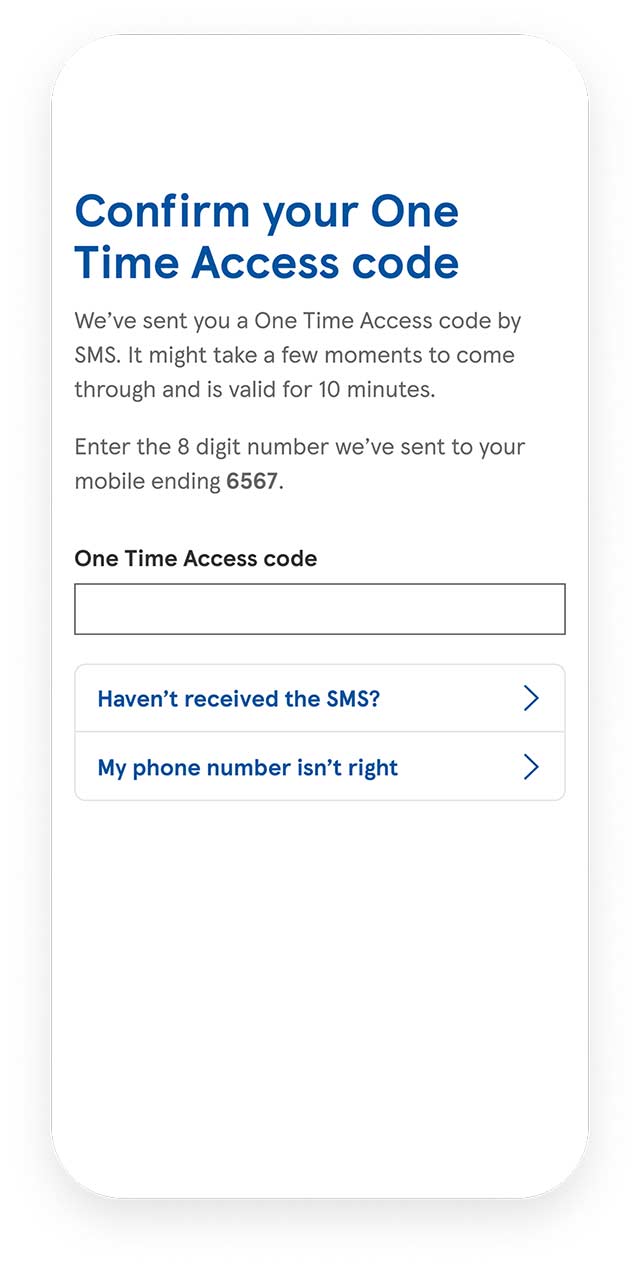
Not received one-time access code?
If you’ve not received your one-time access code, please check:
- Your mobile number is up to date
- Your device has good signal
- There are no network problems
If the problem continues, please contact us.
Changing your device
If you change your device, you can set up our Mobile App on your new phone using the New Device Transfer feature. You'll need your old phone, your new phone, and your Online Banking password.
Follow the steps below:
- On your new phone, download our Mobile App from the App Store or Google Play Store
- On your old phone, log in to our Mobile App and select the settings menu at the top of the screen
- Go to 'Security', then 'New device transfer'
- Tap on the 'Generate code' button to generate a QR code. You'll need to use biometric login or enter your passcode or password
- On your new phone, open our Mobile App and select 'Let's get started', then 'Is this a new device?'
- Select 'Scan the code' and, using your new phone's camera, scan the QR code on your old phone
- Enter your Online Banking password to confirm the New Device Transfer and start using our Mobile App on your new phone
On your old phone, you should reset the app through the settings menu or delete it completely from your device.
If you no longer have your old phone, you'll need to know your username, 6-digit security number and Online Banking password to log in to our Mobile App on a new device.
If you have forgotten any of these details, you can reset them by logging in to Online Banking on a recognised device and selecting 'Settings' then 'Manage security details'. You can also contact us to reset your details.
If your new phone has a different number to your old phone, you'll need to update your mobile number by logging in to Online Banking on a recognised device and selecting 'Settings' then 'Personal details'.
Updating your mobile number
To update your mobile number:
- Open our Mobile App
- Go to the 'Settings' menu
- Select ‘Personal details’
- Select ‘Edit’ next to ‘Contact details’
- Enter your new mobile number
It’s important we have the correct phone number for you when using our Mobile App. We need this so we can send you one-time access code text messages for registering your account or resetting your login details.
Technical support
If our Mobile App isn’t working as expected, try these steps:
- Check you’re using the latest version of our Mobile App
- If you cannot update the app, check your device meets our minimum operating system requirements
- If you’re using the latest version and are still experiencing an issue, uninstall and reinstall the app and restart your device to see if this fixes the problem
If the problem continues, please contact us.
Supported Operating Systems
Check our mobile device operating system support policy for details of which operating systems we support, how to find which OS version you have and how to upgrade.
Using our app: step by step guides




We're here to help
Get detailed answers to your questions about our products in our Help and Support Centre or contact our friendly, UK-based customer service team.