
Using Google Pay
Google Pay™ gives you the freedom to make payments with Android devices in-store or online.
Pay easily and securely
- Enjoy convenient and secure contactless payments everywhere Google Pay is accepted.
- With security built into your device, Google Pay doesn’t share your actual card numbers, so your payment information stays safe.
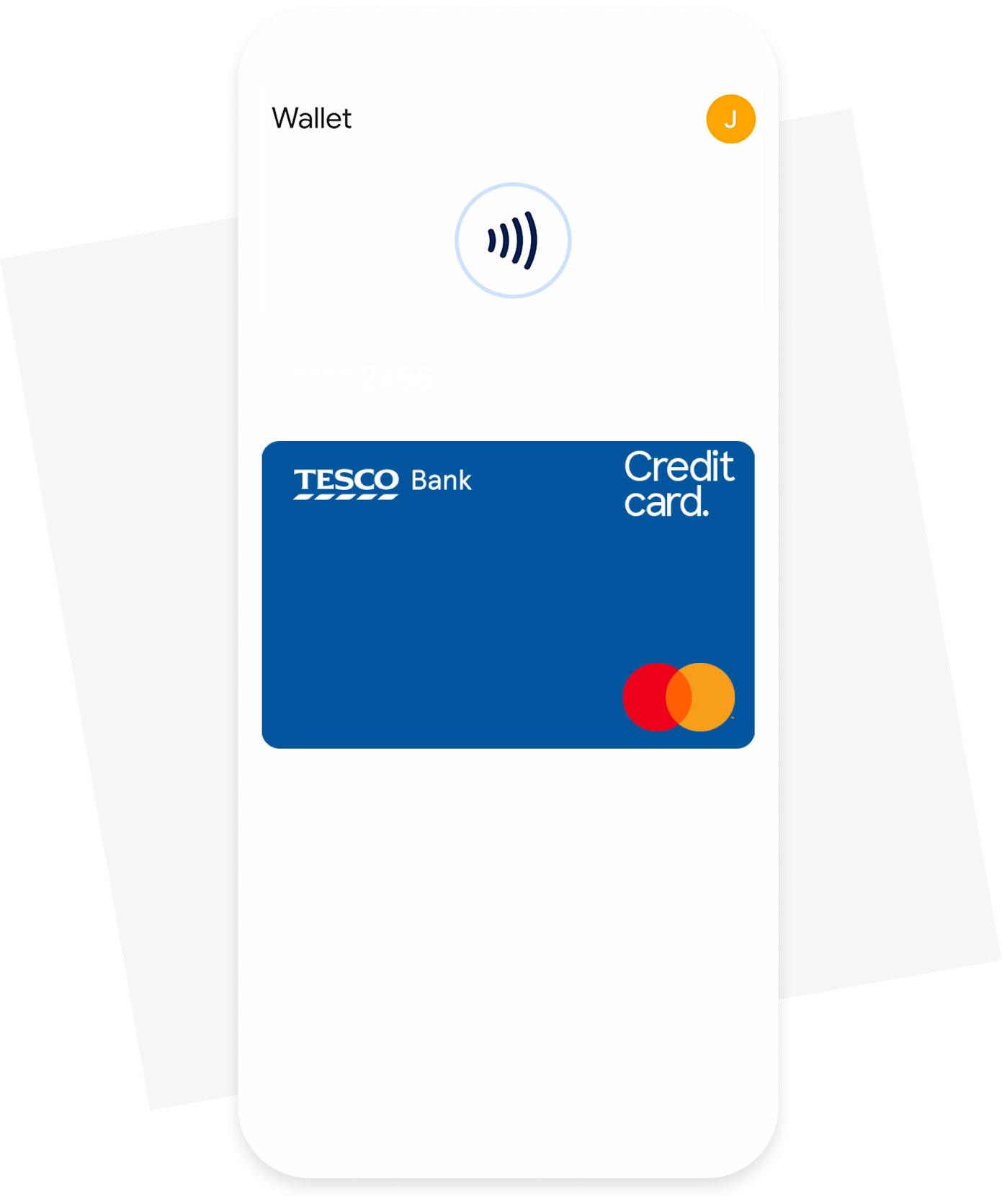
- Quickly and easily access Google Wallet™ from your lock screen, using voice commands, or from the Google Wallet™ app on your homepage.
How can I get rewarded?
- Scan your Clubcard first, either on your Tesco app or your physical Clubcard, and then make your payment using Google Pay to receive your additional points.
- Unlock Clubcard prices and collect your Clubcard points when using Google Pay in a Tesco store.
- Minimum spend and exclusions apply when collecting points.
Find out more about collecting Tesco Clubcard points with a Tesco Bank credit card

Getting started
- Open the Google Wallet™ app or download it on Google Play.
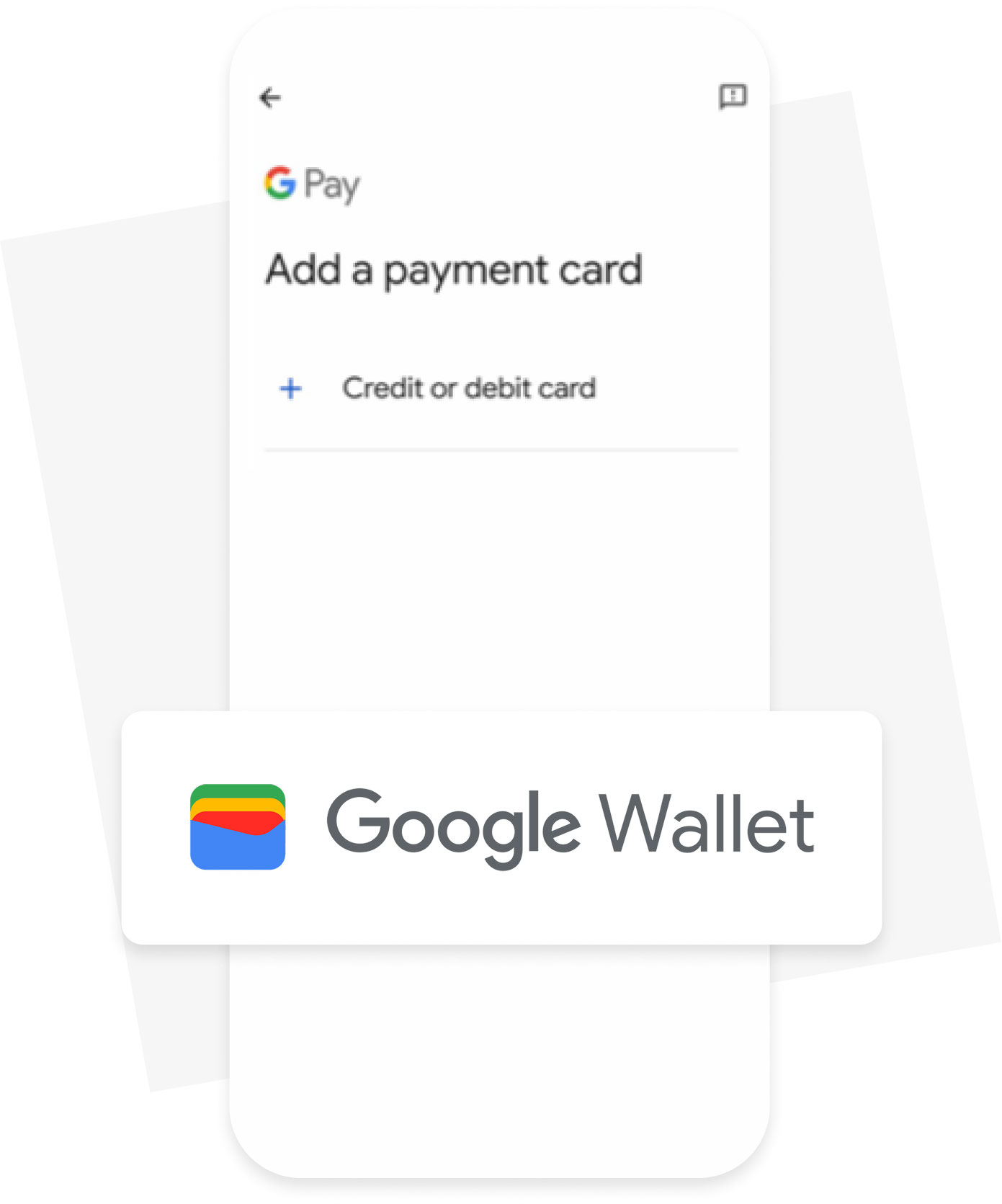
- Tap ‘+’ to add your card and follow the instructions.
- Verify your card if needed and make sure we have the right phone number for you.
Find out how to set up your Tesco Bank card as your default card
Ways to pay
- To make in-app or website payments, tap the Google Pay button at checkout, choose a payment method, enter your shipping address, and confirm your order.
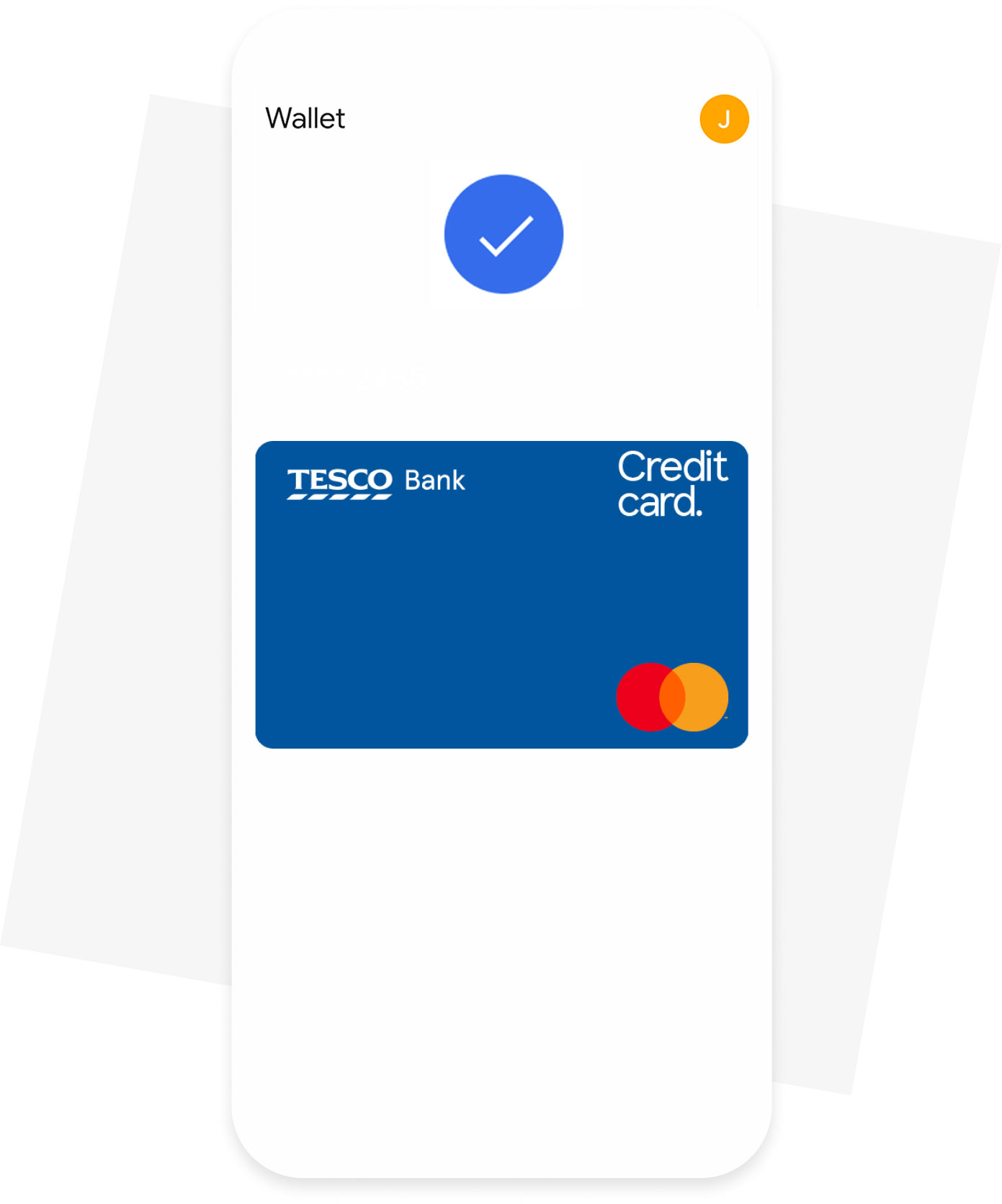
- To pay in-store, unlock your phone (no need to open the Google Wallet™ app), hold it near the terminal, and look for the tick mark to confirm the payment is complete.
How to pay with Google Pay
Once you set up your Tesco Bank credit card in Google Wallet, you can use it to pay everywhere Google Pay is accepted.
How to pay in-store:
1. Unlock your phone. No need to open the app.
2. Hold it near the terminal.
3. Look for the tick mark to confirm the payment is complete.
How to pay in-app or website:
1. At checkout, tap the Google Pay button.
2. If asked, choose a payment method, and enter your shipping address.
3. Confirm your order.
Frequently asked questions
You might not be able to verify your card to use Google Pay if we don’t have your correct mobile number. This is because we send you a text with a code to verify your identity and keep your account secure.
To update your details, log in to our Mobile Banking App, go to the settings menu and then select ‘Personal details’. You can tap ‘Edit’ on any details you’d like to change.
We’ll send you a text to let you know everything has been updated successfully. If you get a text about this and you haven’t made any updates, please get in touch as soon as possible.
If you've lost your card, let us know straight away to ensure you're protected. In our Mobile Banking App, you can block your card, report it as lost or stolen and order a replacement card. Alternatively, you can contact us.
When you receive a replacement card, it will be added automatically to your Google Wallet. If you find your card and unblock it, you can use it again to pay everywhere Google Pay is accepted. Just remember, you may need to reset it as the default card.
If your device has been lost or stolen, use Find My Device to lock it. You can then secure it with a new password or erase your data.
Most retailers who accept contactless payments will accept Google Pay in the UK and overseas. Different transaction limits may apply depending on the country. Look for the Google Pay acceptance mark or contactless symbol at checkout.
If you replace or update your device, you’ll need to add your card(s) again to the Wallet app using the same set-up process explained above. Make sure to remove your card(s) from your Wallet before you dispose of your device.
Read the full details of how you can make a return using Google Pay.
For some returns, you may be required to share your actual card or provide the last 4 digits of your virtual account number. You can find your virtual account number on the card details screen in your Google Wallet app.
Depending on the return and refund policies of the store, it may take several days for the return transaction to appear on your card statement. Google Pay transactions are included on your card statements.
You can use Google Pay with retailers that display the contactless or Google Pay logo. There’s no limit to how much you can pay in one transaction, but some retailers might set their own limits for Google Pay payments.
If you're abroad, different transaction limits may apply depending on which country you’re in.

Need a hand? We're here to help
Get detailed answers to your questions about our products and more in our Help and Support Centre and FAQs.
Important information
Google, Android, Google Pay, Google Play, and Google Wallet are trademarks of Google LLC. To use Google Pay in stores you will need an Android phone with near-field communication (NFC), running Android Lollipop (5.0) or higher. You can make in-app or website payments even if your phone doesn’t have NFC. For more information, visit the Google Support website.