

Clubcard Credit Cards
Collect Clubcard points, spread the cost of larger purchases, help build your credit score, transfer balances and easily check your eligibility with our Clubcard Credit Cards.
I'd like a credit card for:
Tesco Bank Credit Cards are available to UK residents aged 18 and over. Subject to status.
Browse our Credit Cards and find one that's right for your needs.
Tesco Bank Credit Cards are available to UK residents aged 18 and over. Subject to status.
Have an existing credit card with a higher interest rate? You could save money by transferring your balance to a new card.
Tesco Bank Credit Cards are available to UK residents aged 18 and over. Subject to status.
Thinking about transferring a balance and making a big purchase? A credit card provides flexibility by helping you spread the cost of repayments over time. Plus, you could save money by transferring an existing balance to a new card with a lower interest rate.
Tesco Bank Credit Cards are available to UK residents aged 18 and over. Subject to status.
If you’re looking for a bit of extra flexibility when you’re making big purchases, a credit card could help you spread the cost of repayments over time.
Tesco Bank Credit Cards are available to UK residents aged 18 and over. Subject to status.
Whether it's your weekly shop, your morning coffee or weekend treat, you can track your spending and manage your money in one place - and collect Clubcard points nearly every time you spend.
Tesco Bank Credit Cards are available to UK residents aged 18 and over. Subject to status.
Our Foundation Credit Card can help you get your credit rating to where you want it to be. Get monthly updates with the handy CreditView tool to build your credit rating over time.
Error: Please enter an amount between £100 and £19,000
Error: Please enter an amount between £25 and £1000
Let's tweak the numbers a bit.
Unfortunately, we don't have any products that match the values you've entered. Try adjusting your transfer or repayment amounts.
Based on what you told us and some assumptions, Here are 0 credit cards to consider:
Sort by:
Based on what you told us and some assumptions, Here are 0 credit cards to consider:
Sort by:
Based on what you told us and some assumptions, Here are 0 credit cards to consider:
Sort by:
Based on what you told us and some assumptions, Here are 0 credit cards to consider:
Sort by:
Based on what you told us and some assumptions, Here are 0 credit cards to consider:
Sort by:
Based on what you told us and some assumptions, Here are 0 credit cards to consider:
Sort by:
Balance Transfer and Purchases Credit Card
interest
0%
guaranteed for
21 months
on purchases and balance transfers from account opening
- 0% interest on purchases guaranteed for the first 21 months
- 0% interest on balance transfers guaranteed for the first 21 months (2.95% fee)
- Collect Clubcard points almost every time you shop
Your APR and credit limit may vary depending on your circumstances.
£0
£0
£0
£0
Representative example
All Round Credit Card
interest
0%
guaranteed for
months
on purchases, money transfers, and balance transfers from account opening
- 0% interest on purchases guaranteed for the first 14 months
- 0% interest on balance transfers guaranteed for the first 14 months (2.49% fee)
- 0% interest on money transfers guaranteed for the first 14 months (3.99% fee)
- Collect Clubcard points almost every time you shop
Your APR and credit limit may vary depending on your circumstances
£0
£0
£0
£0
Representative example
Balance Transfer Credit Card
interest
0%
guaranteed for
36 months
transfer fee
%
on balance transfers from account opening
- 24.9% APR representative (variable) on purchases
- 0% interest on balance transfers guaranteed for the first 36 months (3.45% fee)
- 0% interest on money transfers for the first 9 months (3.99% fee)
- Collect Clubcard points almost every time you shop
Your APR and credit limit may vary depending on your circumstances
£0
balance transfer amount at opening
£0
per month taking months to repay
£0
Total interest (0%)
Total interest (%) after 0% period ends
£0
balance transfer fee (% of £0.00)
Representative example
Low Fee Balance Transfer Credit Card
interest
0%
guaranteed for
months
transfer fee
%
on balance transfers from account opening
- 24.9% APR representative (variable) on purchases
- 0% interest on balance transfers guaranteed for the first 15 months (low 0.75% fee)
- 0% interest on money transfers for the first 9 months (3.99% fee)
- Collect Clubcard points almost every time you shop
Your APR and credit limit may vary depending on your circumstances
£0
transfer amount at opening
£0
per month taking months to repay
£0
Total interest (0%)
Total interest (%) after 0% period ends
£0
transfer fee (% of £0.00)
Representative example
Everyday Low APR Credit Card
% APR representative
(variable) on purchases
- 12.9% APR representative (variable) on purchases
- Collect Clubcard points almost every time you shop
Your APR and credit limit may vary depending on your circumstances
£0
£0
£0
£0
Representative example
Foundation Credit Card
- Starting credit limits between £200 to £1,500 and monthly repayments from £25
- Get access to Tesco Bank CreditView, provided by TransUnion, for 3 years from account opening, and track your credit score with monthly updates
Find out about Tesco Bank CreditView - Collect Clubcard points almost every time you shop
- You may be considered for regular optional credit limit increases if you manage your account well.
Learn more about credit limit increases
Your APR and credit limit may vary depending on your circumstances
£0
£0
£0
£0
Representative example
Smart spending
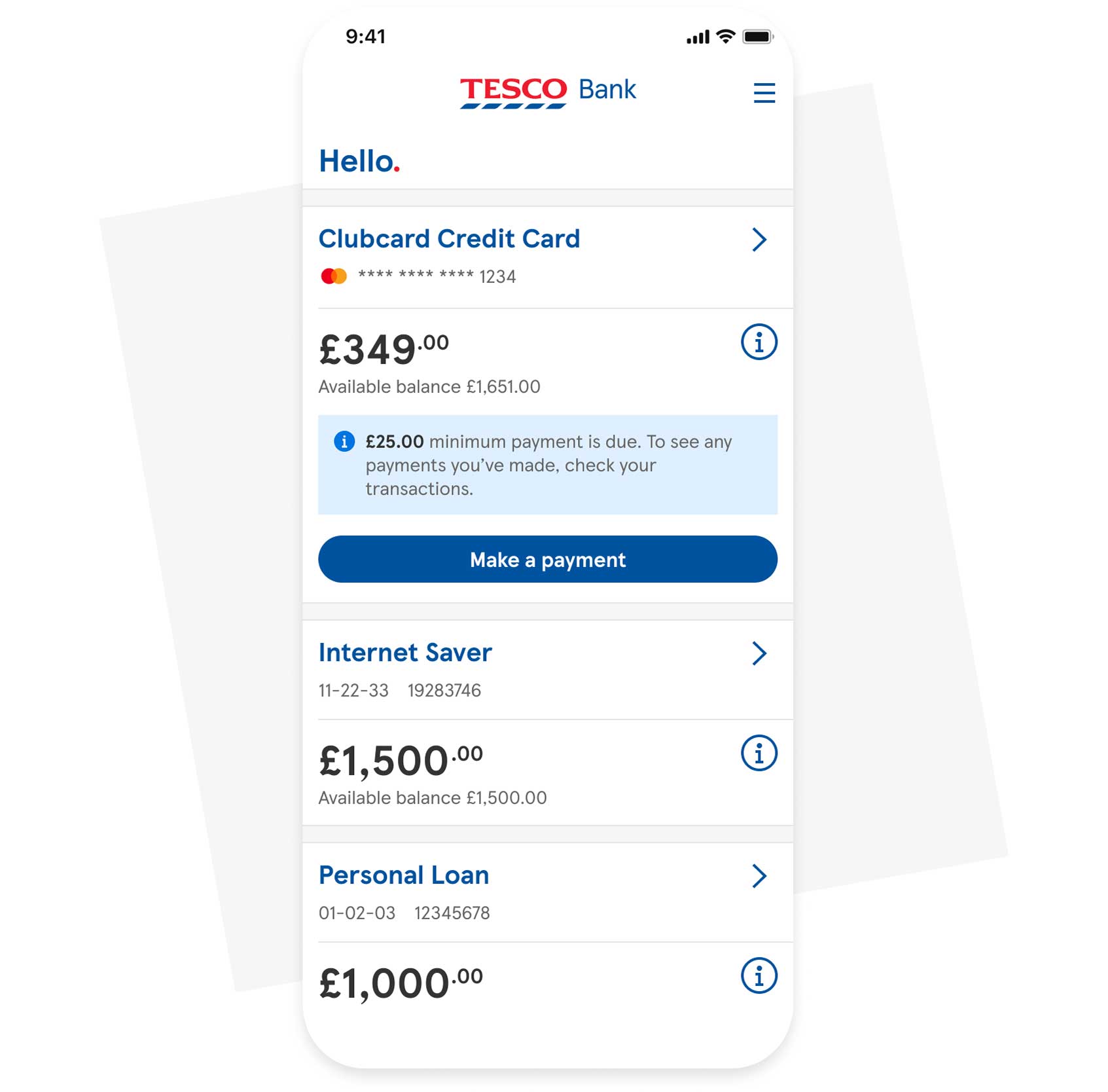
Join our 2.4 million customers managing their money with our Mobile Banking App.
- Stay on top of all your transactions.
- Pay directly from your bank account with Pay by Bank.
- Report a lost, stolen or damaged card from anywhere.
Protect your credit score
See if you are likely to be accepted and protect your credit score using our eligibility checker.
Using a Clubcard Credit Card, you could collect:
Points for every £4 spent at Tesco
4 points with a Clubcard alone
Point for every £4 spent on Tesco fuel (excluding Esso) plus 1 point for every 1 litre bought
1 point for every 2 litres bought with a Clubcard alone
Point for every £8 spent outside Tesco
0 points with a Clubcard alone
100 points = £1.00 in vouchers. Find out more about turning points to vouchers. You can collect points with your Clubcard Credit Card. Learn how to collect points using Apple and Google Pay.
With your vouchers, you can:

Save on groceries and fuel
Use your vouchers to save in Tesco, as well as on fuel at Tesco petrol stations and at Esso sites with a Tesco Express

Get 2x more value from your vouchers with Tesco Reward Partners
Exchange your vouchers to use on days out, eating out and more with over 100+ Tesco Reward Partners
See how your Credit Card spend turns into Clubcard vouchers with our rewards calculator
How much do you spend a month?
Using one of our Credit Cards, you could collect:
| After 3 months | After 1 year | |
|---|---|---|
| Clubcard points | ||
| Clubcard vouchers | ||
| Tesco Reward Partners | up to | up to |
After 3 months |
|
|---|---|
| Clubcard points | |
| Clubcard vouchers | |
| Tesco Reward Partners | up to |
After 1 year |
|
| Clubcard points | |
| Clubcard vouchers | |
| Tesco Reward Partners | up to |
That's 16500 more points each year than using your Clubcard alone, just for spending on a Tesco Bank Credit Card.
turn in vouchers
into to use with Tesco Reward Partners
*after 1 year
Credit card FAQs
A credit card lets you spend money up front, with the agreement that you'll pay it back later, often with interest. How much you can spend depends on your credit limit, which is set by the card provider, and the type of card you have.
Some key features of credit cards include:
- Monthly repayments - You don't have to pay the full balance every month, but you must make at least a minimum payment. The minimum is calculated by your provider based on factors like your current balance and interest.
- Interest charges - Carrying a balance beyond the payment due date usually incurs interest, calculated at the credit card's annual percentage rate (APR).
- Credit score impact - Responsible use - making payments on time and keeping balances low - can help improve your credit score. However, missed payments can have a negative impact on your credit score.
- Additional benefits - Some credit cards offer benefits, such as rewards, cashback, or an interest-free period depending on the card type.
Choosing the right credit card depends on your financial goals and spending habits. Consider what you would mostly use the card for and which benefits would be most useful to you. There may be a specific type of credit card which is well-suited to your needs:
- Paying off debt - Balance transfer credit cards let you consolidate existing debt, often with lower or 0% introductory interest rates.
- Building credit - Credit building credit cards help improve low credit scores by allowing small, manageable borrowing.
- Making large purchases - 0% purchase credit cards provide an interest-free period, making it easier to spread the cost of one-time or expensive items.
- Earning rewards - Rewards credit cards offer points, cashback, or other benefits for regular spending, typically suited to those who pay their balance in full each month.
- Travel perks - Travel credit cards offer benefits like no foreign transaction fees, travel insurance, and rewards for flight or hotels.
Credit cards can be useful for spreading the cost of big purchases, consolidating debts or building up your credit score. They can also offer extra benefits, like rewards or cashback.
Credit cards also carry risks, including the potential for building up debt, the temptation to overspend, and the risk of lowering your credit score if you miss a payment or if you apply and are declined. You can find out how likely you are to be approved for a credit card without affecting your credit score by using our credit card eligibility checker.
Pros:
- Spread payments - Pay for large purchases over time instead of all at once.
- Debt management - Balance transfer cards can help consolidate existing debts.
- Build credit - Responsible use can improve your credit score.
- Rewards and perks - Many cards offer cashback, points, or other benefits.
Cons:
- Interest and fees - Carrying a balance can lead to high interest charges.
- Credit risk - Missing payments or overextending can lower your credit score.
- Application impact - Applying and being declined may temporarily affect your credit rating.
- Mismatch with needs - Choosing a card that doesn't fit your spending habits can reduce benefits.
- If you have 0% interest rates, these apply from the day you opened your account
- You can transfer up to 95% of your available credit limit. You won't be able to transfer a balance between Tesco Bank Credit Cards
- For money transfers: purchases made using money that has been transferred will not benefit from protection under Section 75 of the Consumer Credit Act 1974. Section 75 protection is only available if you make the purchase with your credit card (not all purchases are eligible for this protection)
- Foundation Credit Limit Increases: You will be considered for regular credit limit increases if you stay within your credit limit, make your minimum payments on time and manage your account well. You also need to manage any other credit products you have, such as loans and other credit cards well.
APR, or Annual Percentage Rate, is the total cost of borrowing expressed as a yearly percentage. It shows how much you'll pay for credit - such as a credit card, loan, or mortgage - combining the interest rate with any mandatory fees. This makes it easier to compare the true cost of different credit options.
Variable APR is an Annual Percentage Rate that can change over time, usually based on movements in a benchmark rate like the Bank of England base rate. Most credit cards use a variable APR, and your provider must notify you in advance if your rate is going to change.
After applying, your application will either be accepted, referred, or declined. If you meet all the requirements, you’ll be accepted and, after accepting the terms and conditions, will receive your credit card within a few weeks.
If your application is referred, you’ll be placed into a referral queue, and we’ll usually get in touch with you to ask for more information. We’ll also let you know if your application is declined. Read more on these credit application outcomes in greater detail.
You’ll receive your card 5 to 7 days after your application is accepted, along with your terms and conditions, a copy of your credit agreement and your welcome booklet.
Under Section 75 of the Consumer Credit Act, you could get extra protection if something goes wrong on single purchases that cost between £100 - £30,000.
So, if something you've paid for turns up broken or faulty, or if it doesn't arrive at all, you may be able to get your money back through a Section 75 claim.
Read more about your consumer rights in our guide to the top credit card features.
Yes, you can use your Tesco Bank Credit Card abroad just as you would at home.
With each transaction in a foreign currency you’ll be charged a foreign exchange fee of 2.75% of the cost of your purchase.
Get more information in our guide to using your credit card abroad.
The calculator works out how many Clubcard points you could collect if you had a Tesco Bank Credit Card and used it to pay for items in and out of Tesco.
Based on the amounts you enter into the calculator, we work out the number of Clubcard points you could collect and give an idea of the amount in Clubcard vouchers.
The fuel calculator uses an average price per litre to calculate the number of points, based on 1 point per litre bought. Calculation based on average fuel price per litre. Average price per litre is based on both petrol and diesel and an average fill of 33 litres. Average price per litre updated monthly.
Remember though, your points will be worked out on each individual transaction that you make and not on your total monthly spend. So, this means the calculator only gives an indication and the actual points you receive could vary.
Don't forget that you'll need to spend a minimum amount to begin collecting Clubcard points.
When you open a credit card account with us you’ll be automatically enrolled into the Clubcard scheme if you’re not already a member, and Tesco Bank will share information with Tesco Stores for the operation of your Clubcard account.
Clubcard accounts are managed separately by Tesco Stores, and you should visit the Tesco Stores privacy notice for further information about how Tesco Stores uses your information.
Discover our credit card types
Find out more about the different types of credit card we offer and how they work.
Learn more about credit cards
Credit card types
Credit terms and jargon guide
Credit scores explained
Credit limits explained
Understanding credit
Managing credit card debt
What do credit cards offer?
Comparing credit scores
Should I get a loan to pay off credit card debt?
Tesco Bank Credit Cards are provided by: Tesco Bank, PO Box 344, Newcastle Upon Tyne, NE12 2GF.